Write a Basic Plugin
Basic Plugin
We’re going to write a plugin that lets you ublock your apps when the price of bitcoin goes above a certain threshold.
Lets create a basic manifest:
name: Bitcoin Price Tracker
description: You can be happy when you're rich
minimum_app_version: v1.1.0

imports:
  gemini_api:
    http_client:
      baseUrl: https://api.gemini.com/
This manifest does the bare minimum:
- Declares a name and description.
- Declares an http client for fetching data from the gemini API.
To make this useful, we’re going to turn this into a data plugin by adding the data_plugin key. Under data_plugin we’ll define our first function:
name: Bitcoin Price Tracker
description: You can be happy when you're rich
minimum_app_version: v1.1.0

imports:
  gemini_api:
    http_client:
      baseUrl: https://api.gemini.com/

data_plugin:
  exports:
    bitcoin_price:
      name: Bitcoin Price
      description: Track the price of bitcoin
      output_schema: btc_price

schemas:
  btc_price:
    type_input: object
    properties:
      usd:
        type_input: number
        title: Bitcoin Price (USD)
This defines a function called bitcoin_price with an output defined by the btc_price schema. The btc_price schema has one property (usd), which will represent the price of butcoin in US dollars.
Now let’s create our plugin.js file with our JavaScript:
function bitcoin_price(plugin_cfg, params) {
  let current = gemini_api.get("/v1/pubticker/BTCUSD");
  return { usd: Number(current.body.json.ask) };
}
This function is about as simple as it gets. We have no plugin configuration and no params, so we can ignore plugin_cfg and params. The plugin fetches the current bitcoin price from /v1/pubticker/BTCUSD and returns a JSON object with the usd property, as we defined in our btc_price schema.
With that, we can go ahead and load our plugin into the app:
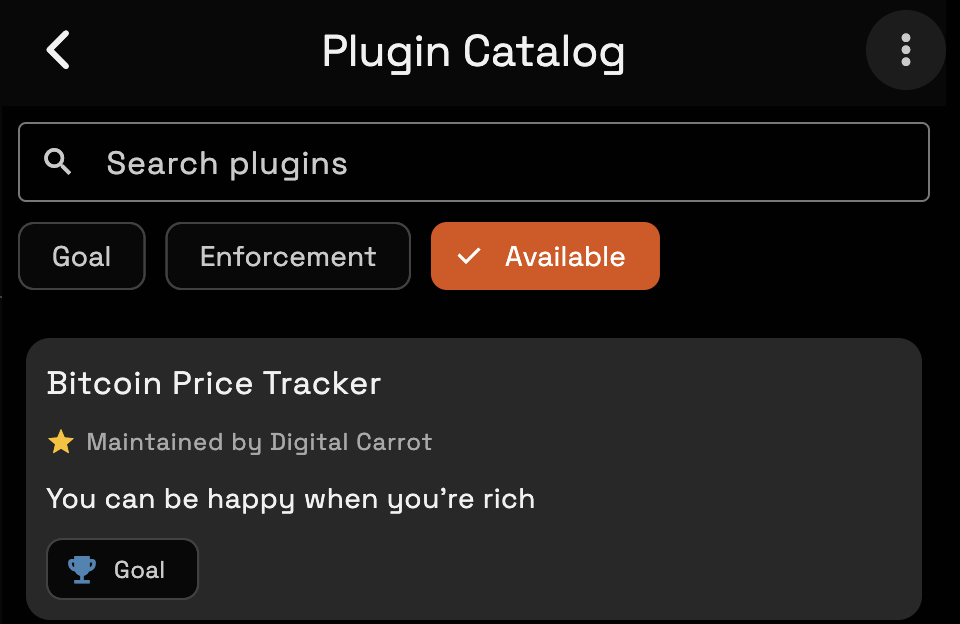
We can access the data from this plugin by creating a custom goal. Do the following:
- Go to My Goals
- Create a new custom goal
- On the expression editor click “Add Data”
- Configure our bitcoin data source
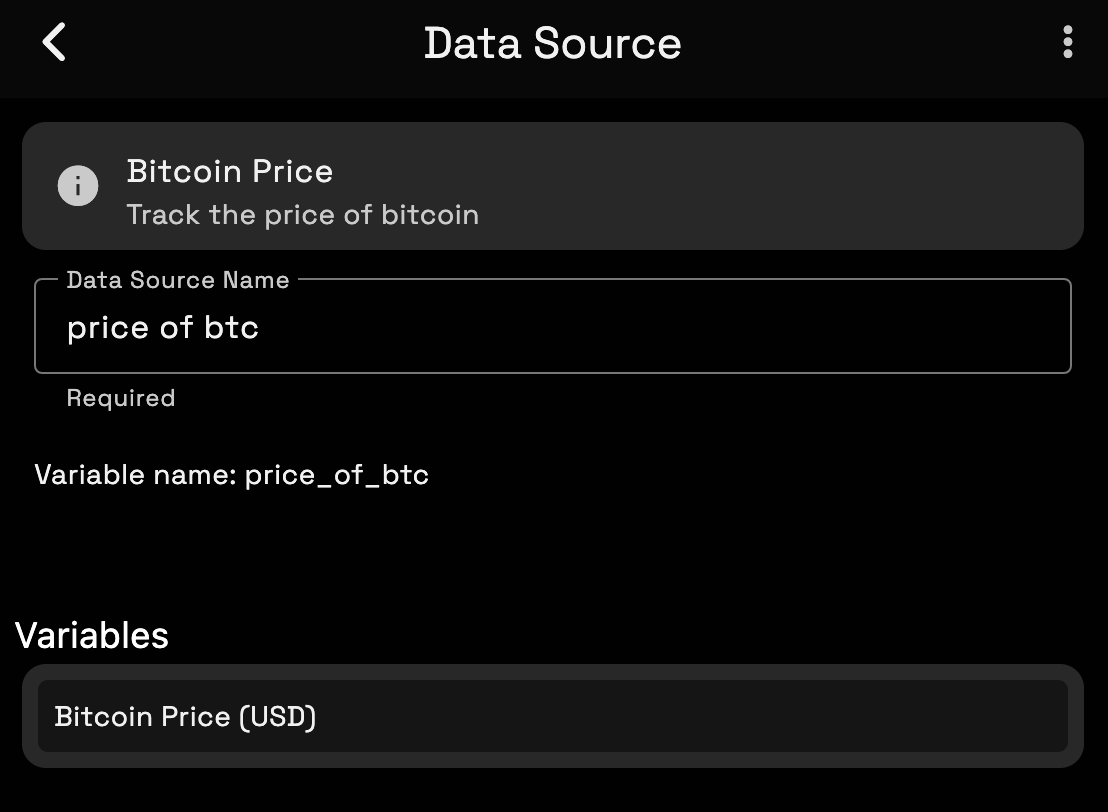
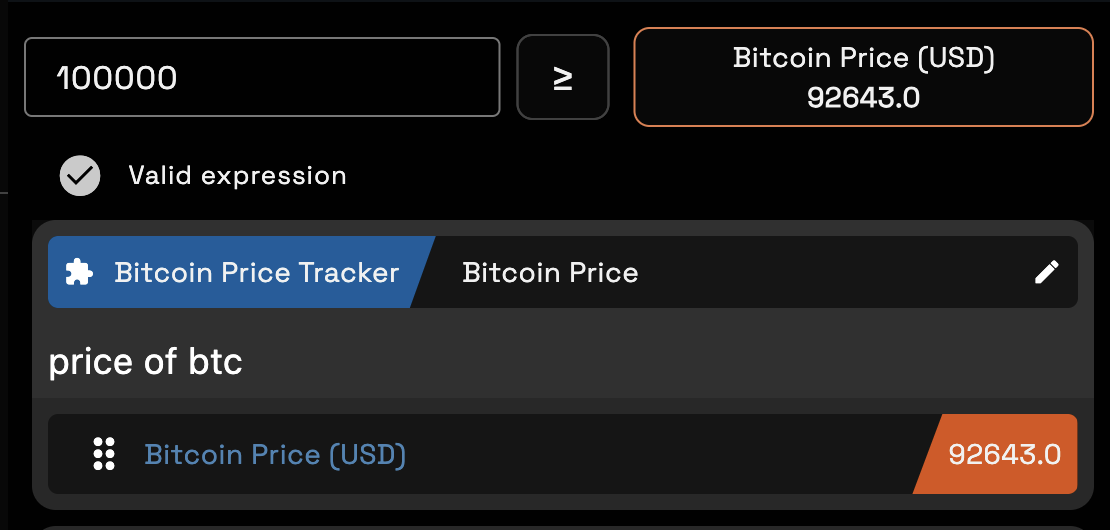
Now we can access the price of bitcoin from any goal using data.price_of_btc.usd.
Quickstarts
Our plugin can now provide some (dubiously) useful data to the app! However, we’re not done just yet. The majority of Digital Carrot users will never touch the custom goal editor, so we need to make things easy for people by creating a Quickstart. Quickstarts serve as goal templates that can be created without having to write an expression.
To do this, we will add a quickstart section to the data_plugin:
name: Bitcoin Price Tracker
description: You can be happy when you're rich
minimum_app_version: v1.1.0

imports:
  gemini_api:
    http_client:
      baseUrl: https://api.gemini.com/

data_plugin:
  exports:
    bitcoin_price:
      name: Bitcoin Price
      description: Track the price of bitcoin
      output_schema: btc_price
  quickstarts:
    get_rich:
      name: Get Rich
      description: You can slack off once your bitcoin stash make you rich
      user_input_schema: get_rich_qs
      function_id: bitcoin_price
      expression_template: "$qs.data.bitcoin_price.usd >= $qs.cfg.target"
      goal_description_template: "Wait for bitcoin to hit $$qs.cfg.target"

schemas:
  get_rich_qs:
    type_input: object
    properties:
      target:
        type_input: number
        title: Target price of Bitcoin
        description: This goal will complete once Bitcoin hits this price

  btc_price:
    type_input: object
    properties:
      usd:
        type_input: number
        title: Bitcoin Price (USD)
Lets take a closer look at our quickstart.
These two properties are fairly self explanatory. They set some user readable information about the plugin.
name: Get Rich
description: You can slack off once your bitcoin stash make you rich
user_input_schema defines the schema that we’ll use for the form when the user goes to configure their goal. In this case we’re just going to prompt them for a target price using the get_rich_quick schema that we defined.
user_input_schema: get_rich_qsHere is where things get intersting. function_id specifies the function that we will be pulling our data from. In this case, we’ve picked bitcoin_price. This tells the app to automatically create a data source for us from the bitcoin_price function. We won’t know what the name of the variable is until the data source is created so, we can reference the value via the $qs.data.bitcoin_price template variable for now.
expression_template is where the magic happens. This allows us to define a template for an expr expression. We can access the target price that the user enters in the form via $qs.cfg.target and compare it to the current price of bitcoin with $qs.data.bitcoin_price.
function_id: bitcoin_price
expression_template: "$qs.data.bitcoin_price.usd >= $qs.cfg.target"
The final piece here is optional. This lets us create a pretty description for the goal.
goal_description_template: "Wait for bitcoin to hit $$qs.cfg.target"Go ahead and reload the plugin by going to Settings -> Plugins -> Install More Plugins and click “Check for Updates” from the drop down menu at the top of the screen.
Lets create a new goal from our quickstart
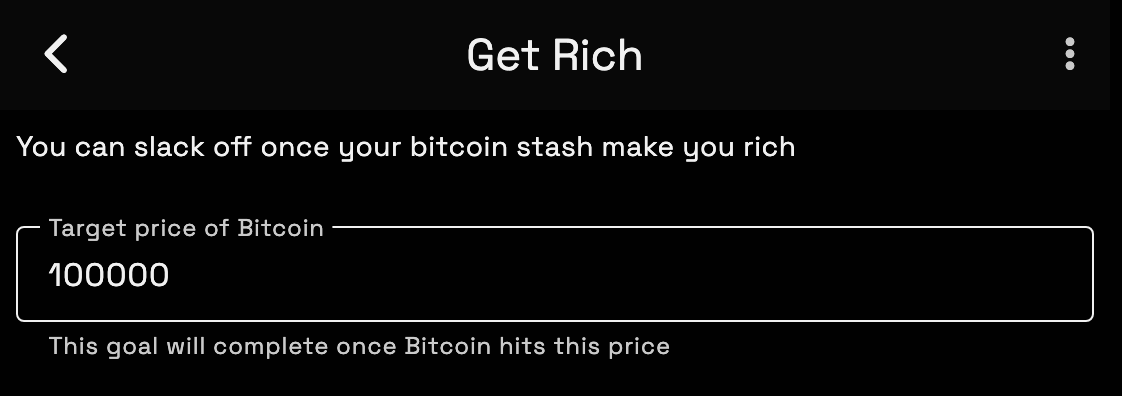
If we go to the “My Goals” page we can see that our goal has been created and given a name from our description template:
